
Adding athletes and login credentials
Athletes can be added to teams in two different ways, both of which are quick to implement. Parents of athletes can also have an account; its functionality is described in a separate section.
- The coach gives the team registration code to the athletes (same for all athletes in the team), then the athletes themselves join the team and enter their own name. Athletes appear automatically in the team after that. This can be done through the team view (Athletes tab).
- The coach or another person in the club enters the names of the athletes and gives each of them their own login credentials, which Qridi Sport generates automatically. This is also a quick way, as you can bring all the team's athletes at once. If you also provide the athletes’ email addresses, you won’t need to distribute separate login credentials to them.
Where do I add athletes?
Athletes can be added from two places: either from the Office or from the Athletes view under the Team.
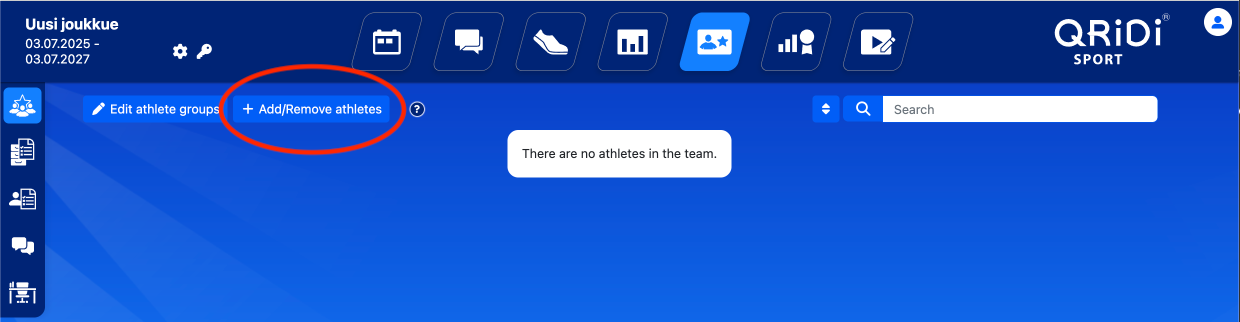
If you add athletes via the team view, select the Athletes view (see image below). If you prefer registration code method for the athletes, use this view (Option A below).
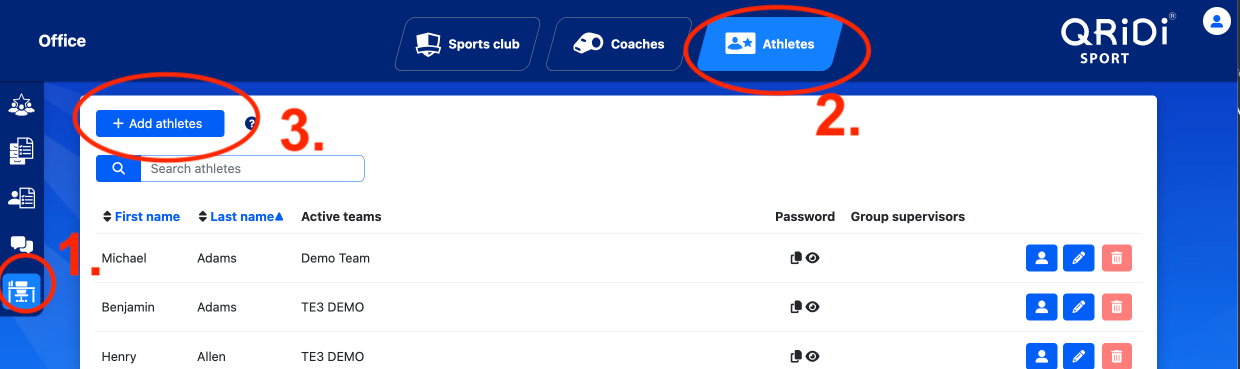
If you add athletes in the Office, you will find the view here (see image below).
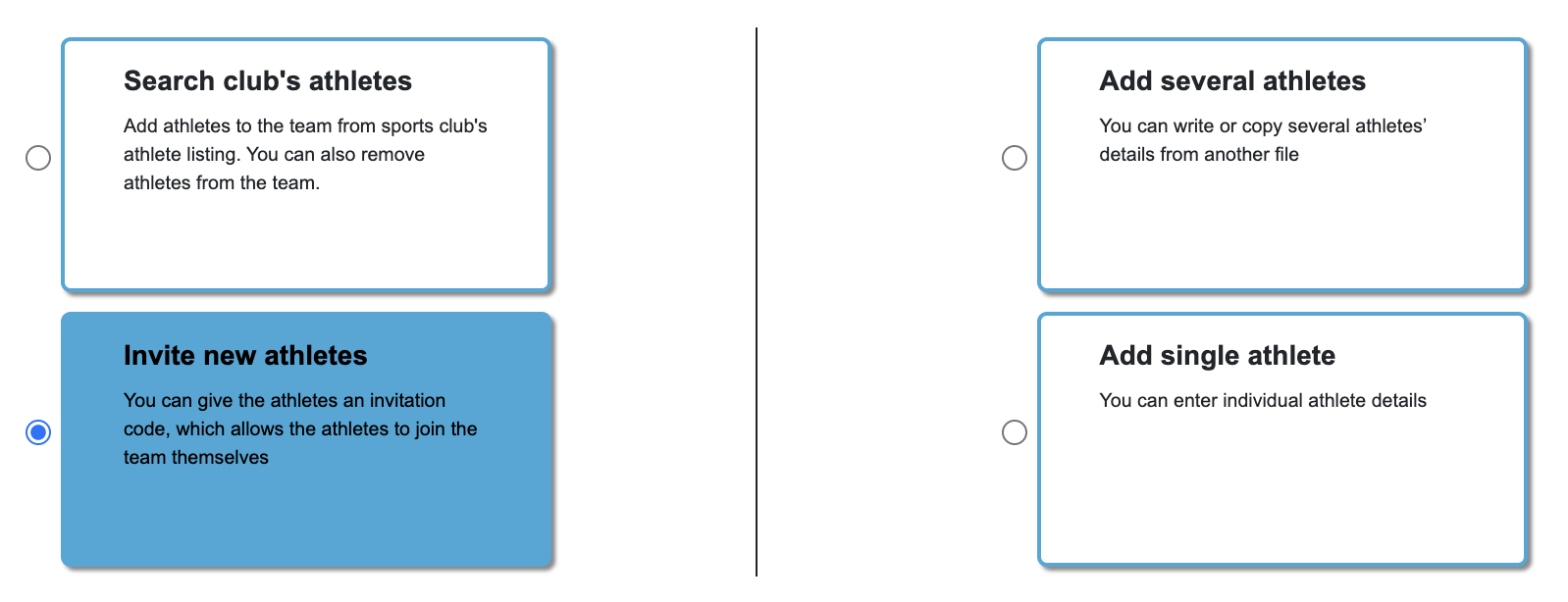
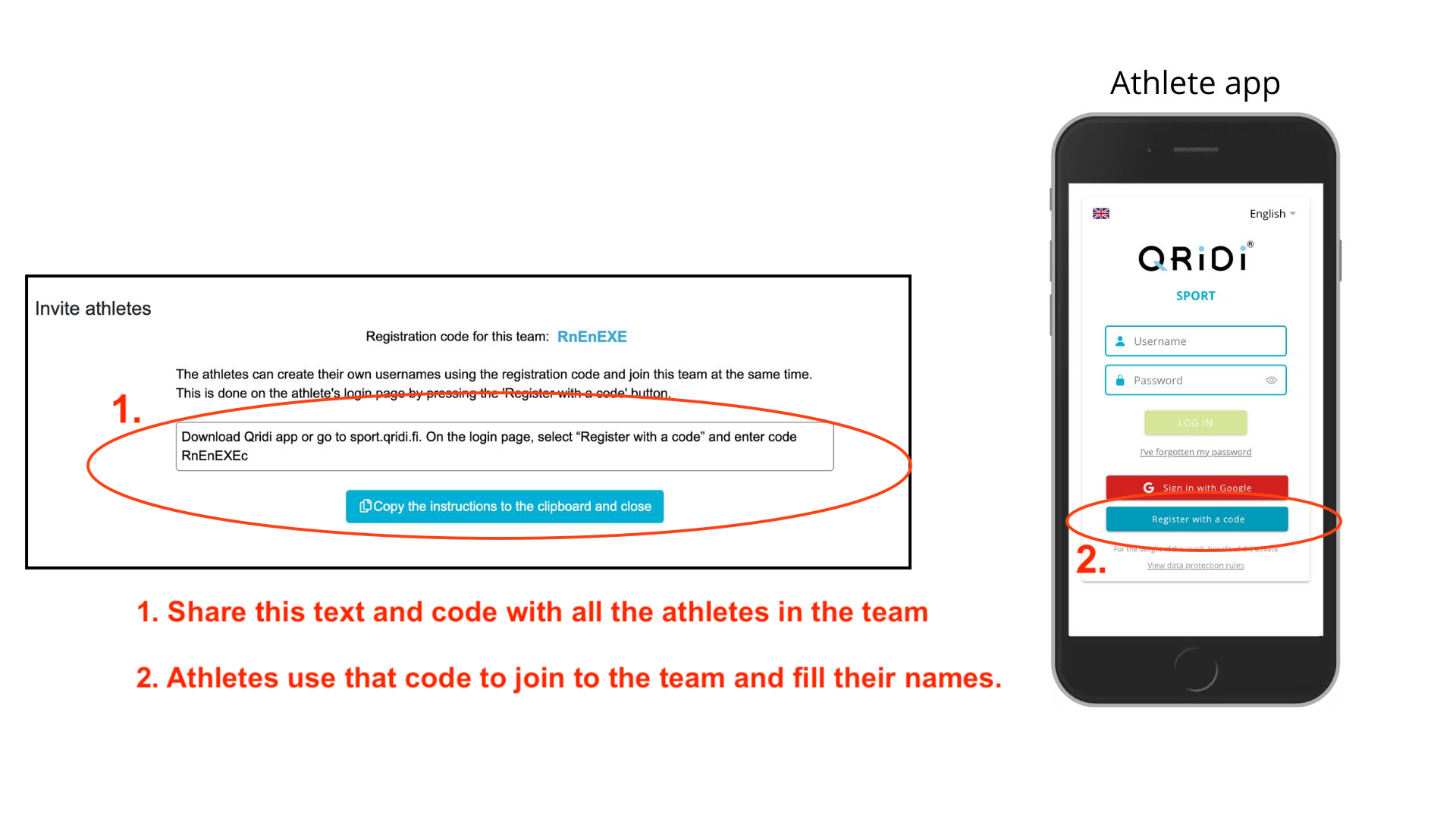
Option A: Sharing the team's registration code
If you want to choose the option where the athletes themselves enter their own name and join the team, the athletes will automatically appear in the team's Athletes view after joining. As a coach, all you have to do is distribute the team's registration code to the athletes.
Option B: The coach enters the athletes and distributes the login credentials
You can also import the athletes, and if you want to bring them all at once you can copy athletes e.g from Excel.
In this case, Qridi Sport automatically then creates login credentials for the athletes. You can easily print them as a pdf file to the athletes. The system automatically creates a login instruction document for each athlete (see the video below).
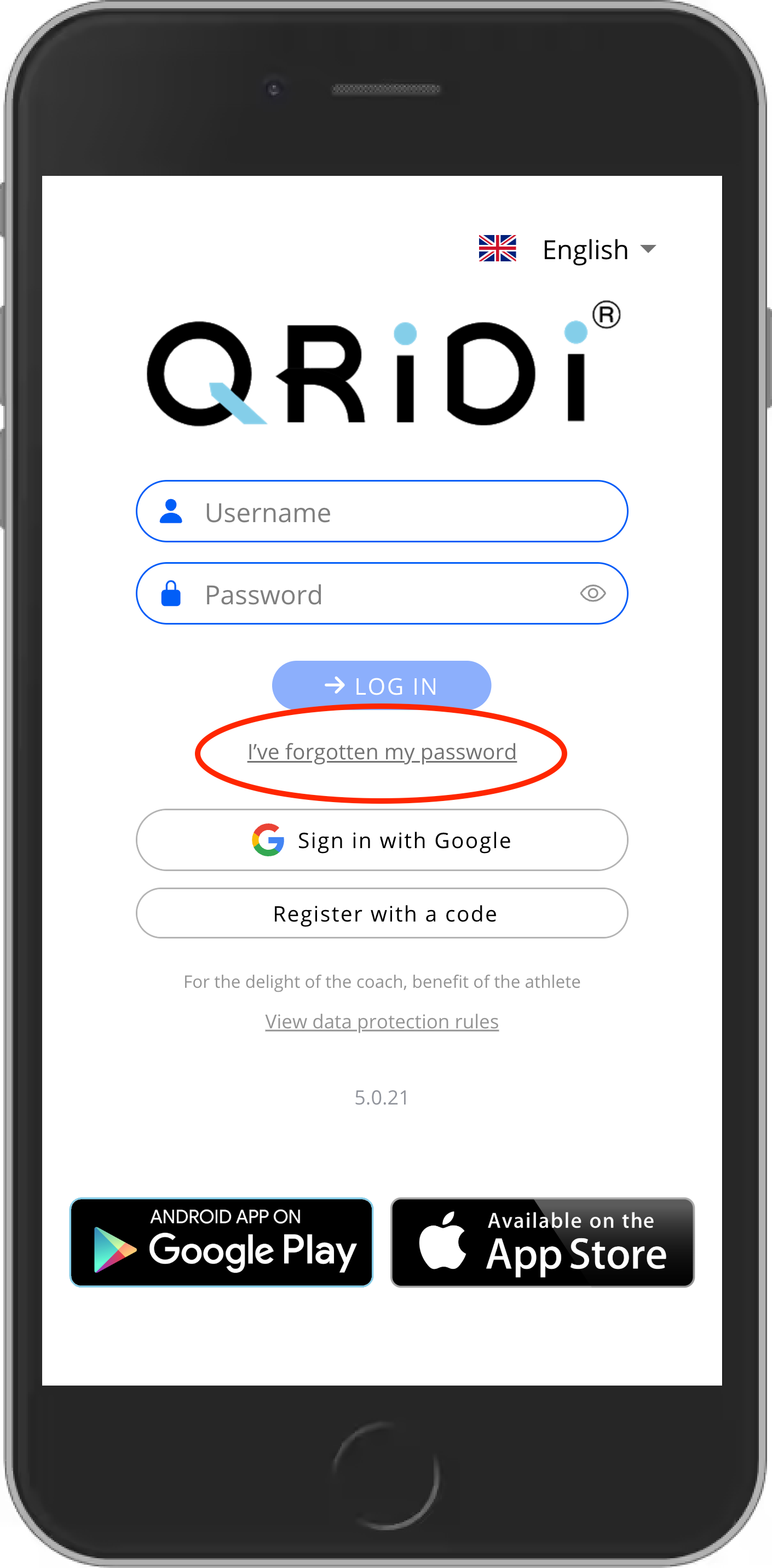
Please note that if you add athletes’ email addresses, you won’t need to provide separate login credentials. Athletes can log in directly using their email. They simply need to select “I've forgotten my password” on the app’s home page, enter their email address, and follow the link sent to their email to set their own password (see image below).
If athletes have an email address added, they can simply select the “I've forgotten my password” option directly from the login page.
Bonus Tip:
- You can communicate with athletes about implementation of Qridi Sport using the ready-made presentation which you find trough this link.
- You can also add individual athletes to the team during the season.
- An athlete can belong to several teams in a club. For such case, then use the method where you add the athlete from the club's athletes to the team you want. You don't have to create a new athlete. Athlete will see all his/hear teams in the app. See video.
- If you add an email address for the athlete, the coach doesn’t need to provide separate login credentials. Athletes can simply select “I've forgotten my password” on the login page and set their own password.